---
title: Notification channels
description: The seven ways Glowo can reach you, and how to scope each one so the right alerts reach the right people.
sidebar:
label: Channels
---
{/* Source of truth: packages/shared/src/notifications.ts —
NotificationChannels, createNotificationChannelSchema (name, events,
monitorIds, projectIds limits). */}
import { BrandIcons } from "../../brand-icons";
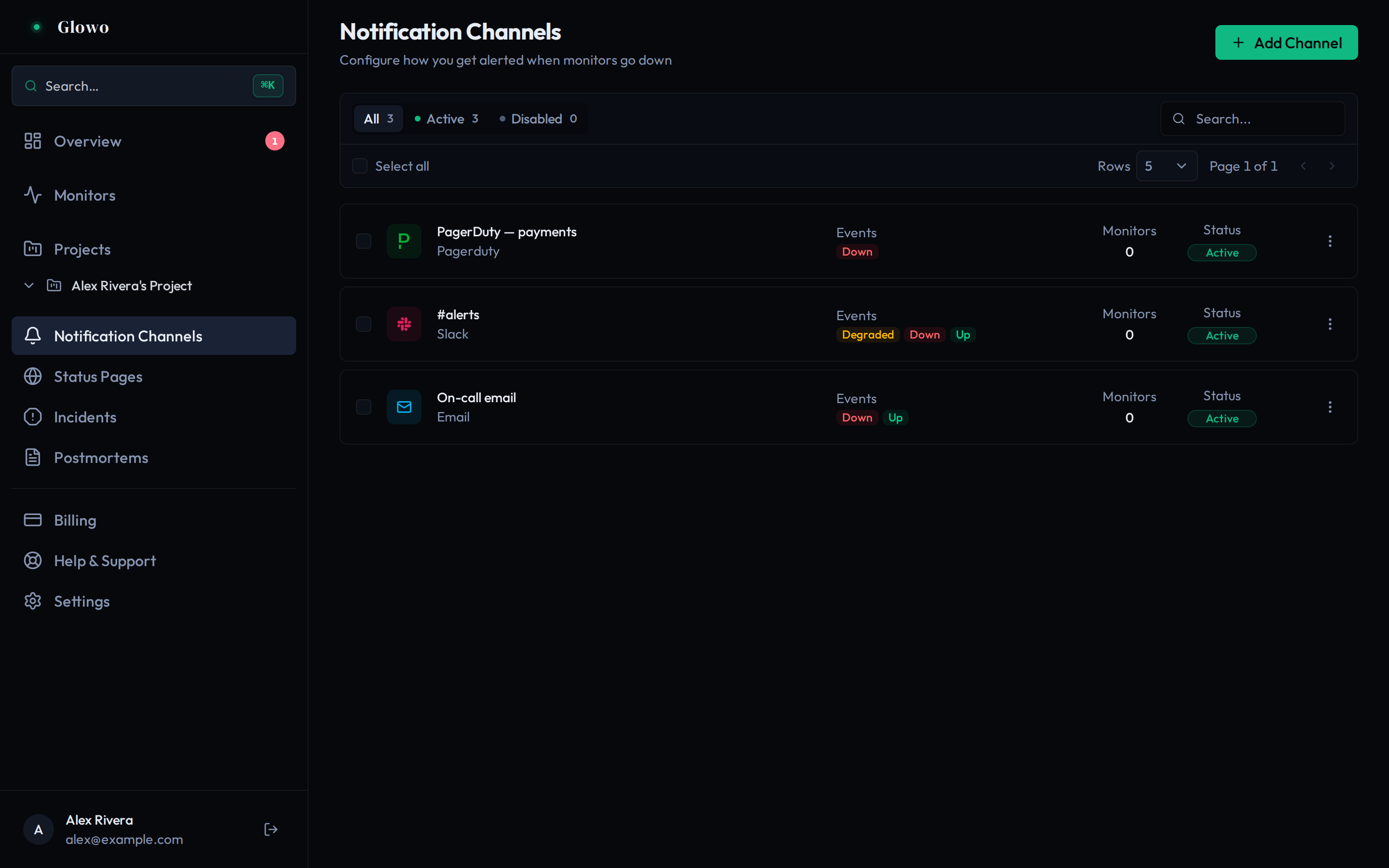
A **channel** is one destination for alerts. You create it once, subscribe it to
the events you care about, and attach it to monitors.
## The seven types
An address. Everyone, as a baseline.
An incoming webhook URL. Team awareness.
A webhook URL. Team awareness.
A bot token and a chat ID. Personal or small-team alerts.
Up to 10 phone numbers. Waking someone up.
An Events API v2 routing key. Real on-call rotations.
A URL, optionally a signing secret. Your own automation.
## Settings every channel shares
| Setting | Limit |
| --- | --- |
| `name` | 1–255 characters |
| `events` | at least one |
| `monitorIds` | up to 50 |
| `projectIds` | up to 50 |
## Scoping
This is the difference between a monitoring system people trust and one they
mute.
- **No scoping** — the channel receives its subscribed events from *every*
monitor in the workspace. Fine for a team-wide Slack channel; wrong for SMS.
- **`monitorIds`** — only these monitors.
- **`projectIds`** — every monitor in these [projects](/organization/projects).
Better than listing monitors individually, because a monitor added to the
project later is covered automatically.
Prefer project scoping. Monitor-level lists silently go stale as your
infrastructure grows, and nobody notices until an alert does not arrive.
## Enabling and disabling
A channel can be disabled without deleting it, which keeps its configuration and
history. Use it to silence a noisy integration while you fix it.
:::note
Disabling stops future pages. Deliveries already queued may still be attempted.
:::
## Testing
Every channel has a **Test** action that sends a sample notification using the
real configuration and delivery path. Use it whenever you create a channel — a
typo'd webhook URL or a revoked bot token is silent until the first real outage,
which is the worst possible moment to find out.
## Choosing a set
A workable pattern for a small team:
| Channel | Events | Scope |
| --- | --- | --- |
| Team email | `MONITOR_DOWN`, `MONITOR_UP` | all monitors |
| Slack `#alerts` | `MONITOR_DOWN`, `MONITOR_UP`, `MONITOR_DEGRADED` | all monitors |
| SMS to on-call | `MONITOR_DOWN` | the "Production" project only |
The `MONITOR_UP` subscriptions matter. Without them nobody learns that the
incident ended, and people keep investigating a resolved problem.